Automate prediction submissions
Use Cloud Runs to generate predictions and submit them on a schedule. Your project keeps the code, model files, run reports, and schedule together. CrowdCent Cloud is open to anyone with a Challenge submission.
Set up a schedule on the website
- Open Cloud and fork the Hyperliquid Ranking Cookbook recipe, or open your own project.
- Enable Challenge access so the code can download data and submit predictions with a temporary Challenge key.
- Save your code, open Run & schedule, and select the file you want to automate.
- Choose On release, or a daily, weekly, or monthly time and timezone. An earlier Cloud Run is optional.
- Check the rule, hardware, and credit balance, then select Set schedule. Cloud Runs consume credits, and a scheduled run needs enough available credit to start.
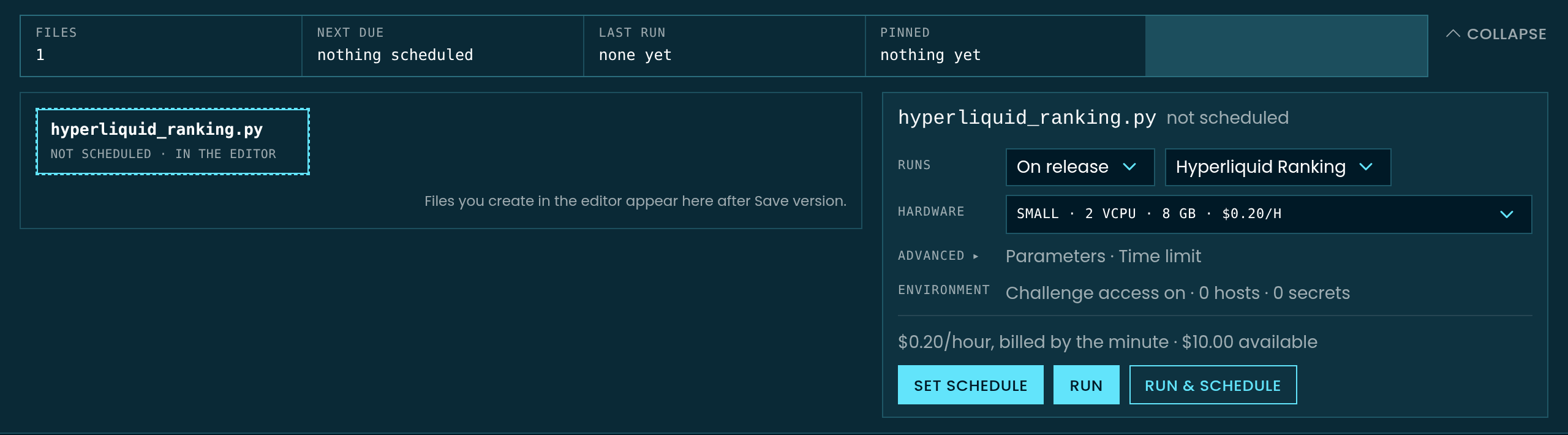
The schedule pins saved code and execution settings. Creating it starts no compute and reserves no credits. Saving an edit does not change an armed schedule; update the schedule explicitly to use the new version.
You can also start a Cloud Run first, inspect its report and the Challenge submissions page, then schedule that successful run's exact settings through Python, the CLI, or MCP.
Use Python, the CLI, or an AI assistant
The Python client, the crowdcent cloud CLI, and MCP tools use the same project and scheduling API. Enable
Allow Cloud on your API key, then follow the
quickstart.
An MCP-connected assistant can handle the workflow:
Create a Cloud project from the Hyperliquid Ranking recipe, run it, and check whether the predictions were accepted. If they were, schedule it on each inference release.
Cloud Runs continue independently of your browser or local computer. Browser and Cloud Sessions are for interactive development; opening a session is not required to run a schedule.
Separate training from prediction
Keep optimize.py and predict.py in the same project. The optimizer can save
models/best.joblib; the prediction script reads it from that path. Schedule
optimization weekly and prediction daily, or start prediction after a successful
optimization. Each file has its own pinned code and schedule. Neither needs to
have run before you set this up:
client.schedule_cloud_project(
    project_id,
    entrypoint="optimize.py",
    envelope="m",
    time_limit_minutes=90,
    trigger="weekly",
    weekday=0,
    daily_at="02:00",
)
client.schedule_cloud_project(
    project_id,
    entrypoint="predict.py",
    trigger="after",
    after="optimize.py",
)
Each Cloud Run reads the output snapshot current when the run is created. An after-success trigger starts a new run against the current snapshot; it does not lock the folder to the triggering run's output if something newer has been published. See safe updates and concurrency for versioning, model retention, and concurrent editing.